
I’ve been recommending Serena to everyone at work for a while, yet somehow never got around to trying it myself. I finally sat down with it on a hobby project - a TypeScript monorepo - and the results were good enough that I wanted to write it up. In short: it makes AI coding tools significantly smarter about your codebase, and it burns noticeably fewer tokens doing it.
What is Serena MCP? Link to heading
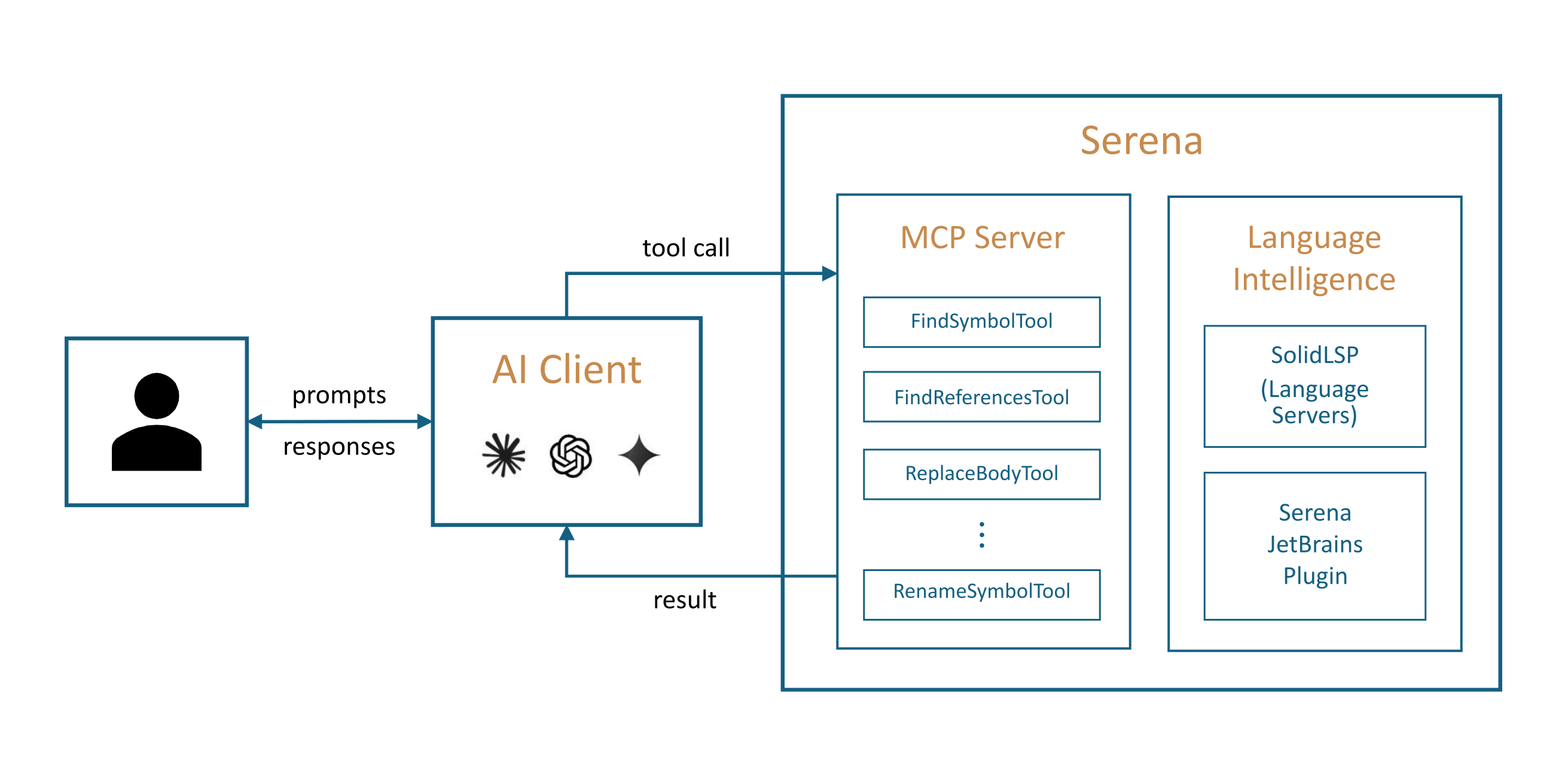
Serena is an open-source MCP (Model Context Protocol) server that gives AI coding assistants IDE-level understanding of your code. Instead of treating your codebase as a pile of text files to grep through, Serena integrates with a Language Server Protocol (LSP) backend - the same technology that powers Go-to-Definition, Find All References, and safe renames in your editor. It exposes those capabilities as tools that any MCP-compatible client can call.
It runs locally on your machine, supports 30+ programming languages, and works with Claude Code, VS Code, Cursor, OpenCode, Claude Desktop, and more.
The Problem: How AI Tools Navigate Code Today Link to heading
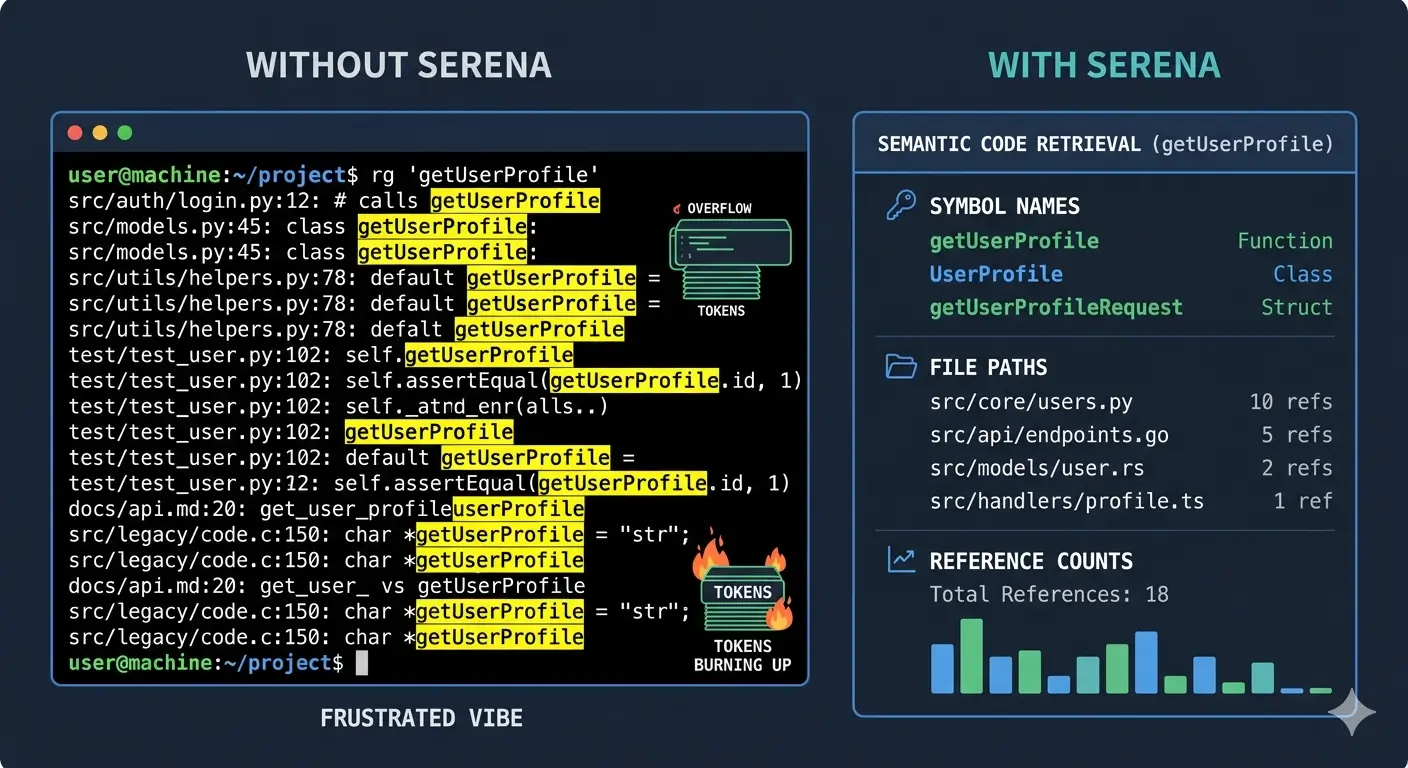
When you ask an AI assistant something like “find all functions that handle authentication,” here’s what typically happens:
- It runs a text search (
grep/ripgrep) for the word “authentication” - It reads matching files, possibly in full, dumping thousands of lines of context
- It returns every line containing that string - including comments, strings, and unrelated matches
This works fine for small projects, but falls apart fast as codebases grow. Consider four scenarios that come up constantly:
| Task | Without Serena | With Serena |
|---|---|---|
| Semantic search - “find auth functions” | Text match on “auth” - returns false positives, misses functions named verifyCredentials | Returns authenticateUser(), login(), verifyCredentials() with file locations and line numbers |
| Go to definition - “show me the User schema” | Searches files for “User” and “schema” - returns every reference | Jumps directly to the User class/interface definition with full import tree |
| Find references - “where is PaymentProcessor used?” | Text search for “PaymentProcessor” - misses dynamic usages | Returns all usages with context: imports, instantiations, method calls |
| Cross-file refactoring - “rename UserService to AccountService” | Text search and replace - misses string interpolations or aliased imports, breaks things | Semantic rename via LSP - updates every reference correctly across the entire codebase |
The token cost compounds everything. Without semantic tools, the AI has to read full files to understand structure, then pass that content back in context. With Serena, it calls find_symbol("UserService") and gets precisely what it needs.
How Serena Changes the Game Link to heading
Serena operates at the symbol level. It indexes your project through a real language server, building a relational map of your code - which functions call which, where types are defined, what imports what. When an AI tool needs to understand or modify your code, it uses Serena’s tools instead of raw file reads and writes:
find_symbol- Locate any symbol by name, optionally reading its full bodyget_symbols_overview- Get a high-level map of all symbols in a file or directory, without reading the full sourcefind_referencing_symbols- Find every call site and usage of a symbol across the codebaserename_symbol- Safe rename via the LSP - every reference updated, nothing missedreplace_symbol_body- Surgically replace a function or class body without touching the surrounding codeinsert_before_symbol/insert_after_symbol- Add code at a precise semantic position
Instead of the LLM editing files line-by-line (and potentially losing track of a reference somewhere), it delegates the edit to Serena. Since Serena works off its indexed data and the language server, edits are reference-aware - if something is used in 20 places, all 20 get updated.
You can find all of the language server tools’ list here.
The Memory System Link to heading
Serena also maintains a persistent memory store per project. As the AI assistant discovers things about your codebase - conventions, gotchas, architecture decisions - it can write those to memory. Those notes survive conversation resets and are available in future sessions, so you don’t start from scratch every time.
The Admin Dashboard Link to heading
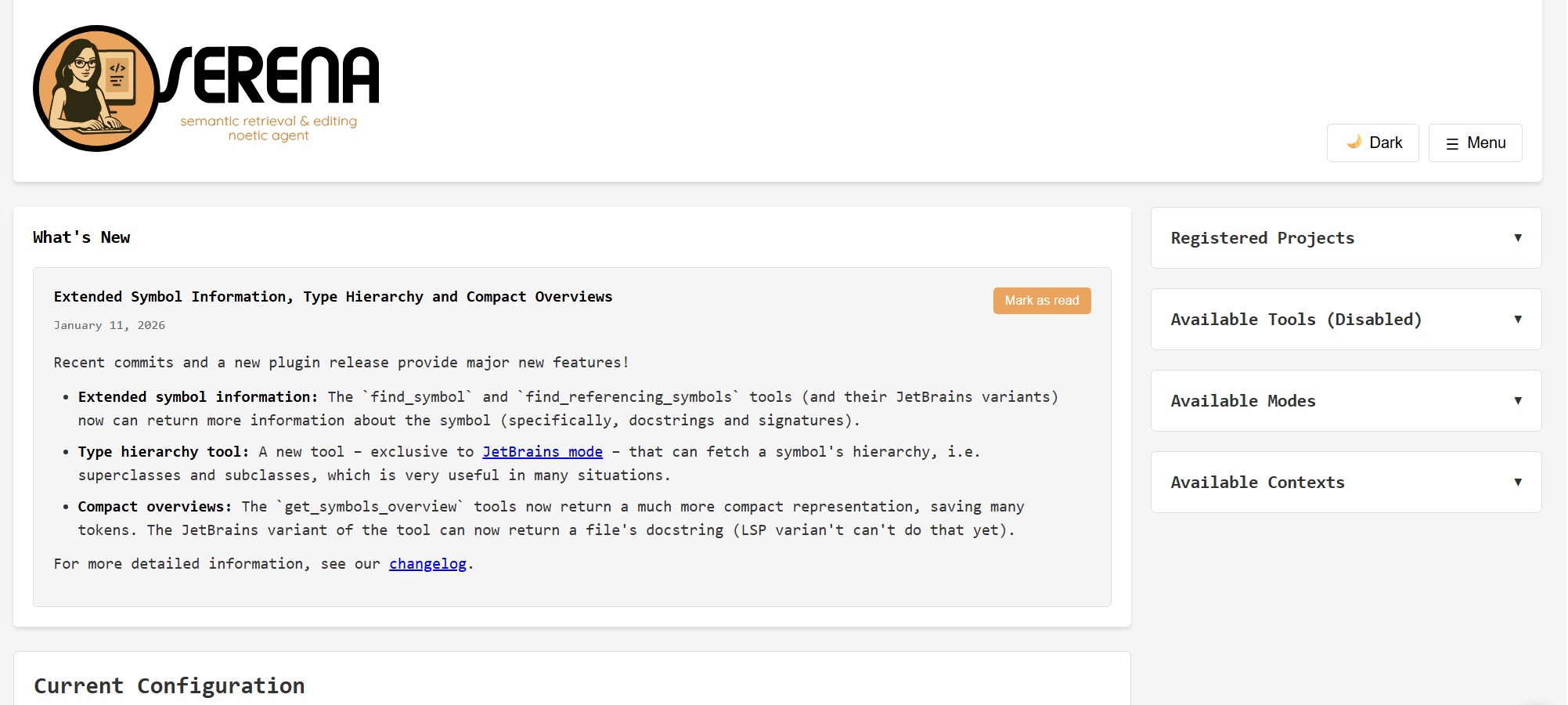
Serena ships with a web-based admin dashboard at http://localhost:24282/dashboard/index.html (enabled by default). It gives you a live view into what Serena is doing:
- Session overview and active projects
- Tool call log with statistics (which tools were called, how often, how long they took)
- Live server logs
- Config file editor - you can tweak settings without restarting
- Memory manager - view and edit the project memories Serena has accumulated
- Server controls
On macOS and Windows, Serena also provides a native wrapper that lives in your system tray. On Linux, it’s browser-only.
Contexts: Picking the Right Mode for Your Client Link to heading
Serena ships with several pre-defined contexts that control which tools are exposed to the AI. The idea is that your AI client may already handle certain things natively - file reading, shell execution - so Serena avoids duplicating them to keep the tool list clean.
| Context | Designed for | What it does |
|---|---|---|
desktop-app | Claude Desktop, general use | Full toolset - everything Serena offers. Use this when the client has no built-in coding capabilities. This is also the right choice for a shared Docker instance serving multiple different clients. |
claude-code | Claude Code | Disables tools that overlap with Claude Code’s built-in capabilities (file edits, shell commands, etc.) to avoid conflicts. Single-project context. |
ide | VS Code, Cursor, Cline | Generic IDE augmentation - focuses on semantic tools, assumes the IDE already handles basic file operations. Single-project context. |
agent | Agno, autonomous agents | Broader autonomy for agents that drive the full workflow independently. |
codex | OpenAI Codex | Optimized for Codex’s tool calling format. |
The claude-code and ide contexts are single-project: when you pass a project path at startup, those contexts lock down to only the tools relevant to that project and disable the project-switching tool entirely (since you won’t need it). |
If you’re running Serena in Docker and want to serve Claude Code, VS Code, and OpenCode from the same container, use desktop-app - it’s the superset. If you’re running Serena locally, per-client, use the context that matches your tool.
Installation Link to heading
Standard Installation Link to heading
First, install Serena via uv (the Serena docs explicitly warn against installing through MCP marketplaces - they ship outdated commands):
uv tool install -p 3.13 serena-agent@latest --prerelease=allow
serena init
This installs the serena CLI globally and runs the initialization wizard. After that, configure your clients:
Claude Code - global configuration (recommended):
claude mcp add --scope user serena -- serena start-mcp-server \
  --context claude-code --project-from-cwd
VS Code (.vscode/mcp.json in your project root):
{
  "servers": {
    "serena": {
      "type": "stdio",
      "command": "serena",
      "args": [
        "start-mcp-server",
        "--context", "ide",
        "--project", "${workspaceFolder}"
      ]
    }
  }
}
Claude Desktop (~/.config/claude_desktop_config.json on Linux, ~/Library/Application Support/Claude/claude_desktop_config.json on macOS):
{
  "mcpServers": {
    "serena": {
      "command": "serena",
      "args": ["start-mcp-server", "--context", "desktop-app"]
    }
  }
}
Docker Installation Link to heading
The Docker approach is what I use, and it’s what the Serena docs recommend for isolation - especially when you’re letting an AI agent make edits. Running Serena in a container means it only has access to the specific directories you mount.
Add this to your compose.yml:
services:
  serena:
    image: ghcr.io/oraios/serena:latest
    container_name: myproject-serena
    restart: unless-stopped
    environment:
      - SERENA_DOCKER=1
    ports:
      - "10121:9121"   # SSE endpoint
      - "34282:24282"  # Web dashboard
    volumes:
      - .:/workspace/myproject
    command: >
      serena start-mcp-server
        --transport sse
        --port 9121
        --host 0.0.0.0
        --context desktop-app
        --project /workspace/myproject
A few things worth noting:
--transport sseis required for Docker - thestdiotransport only works when Serena is a direct subprocess of the client.--context desktop-appgives you the broadest tool set. This works with all clients (Claude Code, VS Code extensions, OpenCode). Narrower contexts likeclaude-codedisable tools other clients need.--project /workspace/myprojectmust point to the container-internal path where you mounted your code. Don’t use--project-from-cwdin Docker - the container’s working directory is Serena’s own install location, not your project.- I use non-standard host ports (
10121and34282) so multiple projects can run their own Serena instances without stepping on each other.
When SERENA_DOCKER=1 is set, Serena knows it’s running in a container. You’ll also want to make sure your global ~/.serena/serena_config.yml (mounted into the container or baked into your setup) has these Docker-appropriate settings:
gui_log_window: false
web_dashboard_listen_address: "0.0.0.0"
web_dashboard_open_on_launch: false
To mount your host config into the container, add a volume entry: ~/.serena:/root/.serena.
Start it with:
docker compose up -d serena
Connecting Your AI Tools Link to heading
Claude Code Link to heading
Register Serena once as a global MCP server:
claude mcp add serena --transport sse --url http://localhost:10121/sse
Or check it into your project as .mcp.json:
{
  "mcpServers": {
    "serena": {
      "type": "sse",
      "url": "http://localhost:10121/sse"
    }
  }
}
VS Code / Cursor / Windsurf Link to heading
Add .vscode/mcp.json to your project root:
{
  "servers": {
    "serena": {
      "type": "sse",
      "url": "http://localhost:10121/sse"
    }
  }
}
OpenCode Link to heading
Add this to opencode.jsonc:
{
  "mcp": {
    "serena": {
      "type": "remote",
      "url": "http://localhost:10121/sse",
      "enabled": true
    }
  }
}
Serena also works with Codex, Kilo Code, and any other MCP-compatible client. The connection is always the same SSE endpoint - it’s just the config file format that differs per tool.
Project Configuration Link to heading
Serena looks for a .serena/project.yml in your project root. Here’s a minimal but practical config for a TypeScript project:
project_name: "myproject"

languages:
  - typescript   # uses typescript-language-server

encoding: "utf-8"
ignore_all_files_in_gitignore: true

ignored_paths:
  - "node_modules"
  - "dist"
  - "build"
  - "coverage"
  - ".next"
  - "out"
  - ".cache"
The ignored_paths list is a belt-and-suspenders measure alongside .gitignore. Without it, node_modules alone can contain 80,000+ files - indexing them makes startup painfully slow and pollutes symbol search with third-party internals.
What to commit vs gitignore:
.serena/project.yml      ← commit this (shared config)
.serena/memories/        ← commit this (AI-generated project notes, useful for everyone)
.serena/cache/           ← gitignore (rebuilt per machine)
.serena/project.local.yml ← gitignore (per-developer overrides)
My Experience Link to heading
I integrated Serena into BrewForm, a Deno 2 + TypeScript monorepo with a frontend, API, and shared packages. What stood out:
Cross-package symbol resolution. Because the entire monorepo is mounted as a single workspace, Serena can trace a type from packages/ through its usages in apps/api/ in one shot. Previously the AI would read through files one at a time trying to stitch it together.
Safer refactors. When I had a task that touched 20-odd files - renaming a shared interface - the AI delegated the actual edits to Serena’s rename_symbol. No file was missed. Contrast that with text search-and-replace, where there’s always that one dynamic usage hiding in a template string.
Natural language questions. I asked things like “explain the auth flow in this codebase” and instead of the AI wandering through files, Serena returned the relevant symbols with context. It was faster, more accurate, and the response took less context space.
Token savings. This is harder to measure precisely, but it’s real. The AI isn’t reading full files to find a function definition - it calls find_symbol and gets the body directly. Edit information doesn’t bloat the context either, since Serena handles the writes.
The Makefile commands I set up also help make it a habit:
make serena-up      # Start the Serena container
make serena-stop    # Stop it
make serena-logs    # Tail logs
make serena-index   # Force re-index after big changes
make serena-health  # Health check the workspace
Final Thoughts Link to heading
Serena fills a real gap. AI coding tools are good at reasoning and generating code - they’re not inherently good at navigating large codebases efficiently. Plugging in a language server that’s specifically built for that job makes a meaningful difference, both in output quality and cost.
If you’re spending a lot of context on file reads and getting imprecise refactors across large projects, Serena is absolutely worth an afternoon to set up. The Docker path in particular is clean - it runs alongside your stack, persists its index, and every client in your team can point at the same SSE endpoint.
The project is on GitHub at oraios/serena and is actively maintained. Give it a try.